TesterArmyTesterArmy
WelcomeIntroductionQuick Start
Run ModePull Request TestingProduction MonitoringGroup Webhooks
Test CredentialsAgent Mail InboxesHTTP Basic Auth
OverviewApp UploadsGitHub Actions
VercelCoolifyCoolifySlack
Testing Staging EnvironmentTesting PRs
Getting StartedLocal Development
Mobile

App Uploads

Before you can automate mobile tests in CI, you need a simulator build to test against.

What you need to upload

TesterArmy currently supports iOS Simulator builds in one of these formats:

  • .app.zip
  • .app.tar.gz

Simulator builds only

Do not upload an .ipa. That is a device build. TesterArmy needs a .app bundle built for iOS Simulator.

Build for iOS Simulator

If you already have an Xcode project, build a simulator app with :
Overview

Previous Page

GitHub Actions

Next Page

On this page

What you need to uploadBuild for iOS SimulatorZip the .app bundleUpload via the dashboardCreate your first mobile testNotes
xcodebuild
xcodebuild -workspace ios/MyApp.xcworkspace \
  -scheme MyApp \
  -configuration Release \
  -sdk iphonesimulator \
  -destination 'generic/platform=iOS Simulator' \
  -derivedDataPath ios/build \
  build \
  CODE_SIGNING_ALLOWED=NO \
  CODE_SIGNING_REQUIRED=NO

The simulator app bundle usually ends up here:

ios/build/Build/Products/Release-iphonesimulator/MyApp.app

If you are using Expo / React Native, the mobile example app is a good reference. Its build flow looks like this:

npx expo prebuild --platform ios

xcodebuild -workspace ios/testerarmy.xcworkspace \
  -scheme testerarmy \
  -configuration Release \
  -sdk iphonesimulator \
  -destination 'generic/platform=iOS Simulator' \
  -derivedDataPath ios/build \
  build \
  CODE_SIGNING_ALLOWED=NO \
  CODE_SIGNING_REQUIRED=NO

Zip the .app bundle

For dashboard uploads and direct API uploads, archive the .app bundle after the build completes:

cd ios/build/Build/Products/Release-iphonesimulator
zip -r MyApp.app.zip MyApp.app

# or using tar
# tar -czf MyApp.app.tar.gz MyApp.app

You should end up with a file like MyApp.app.zip.

Upload via the dashboard

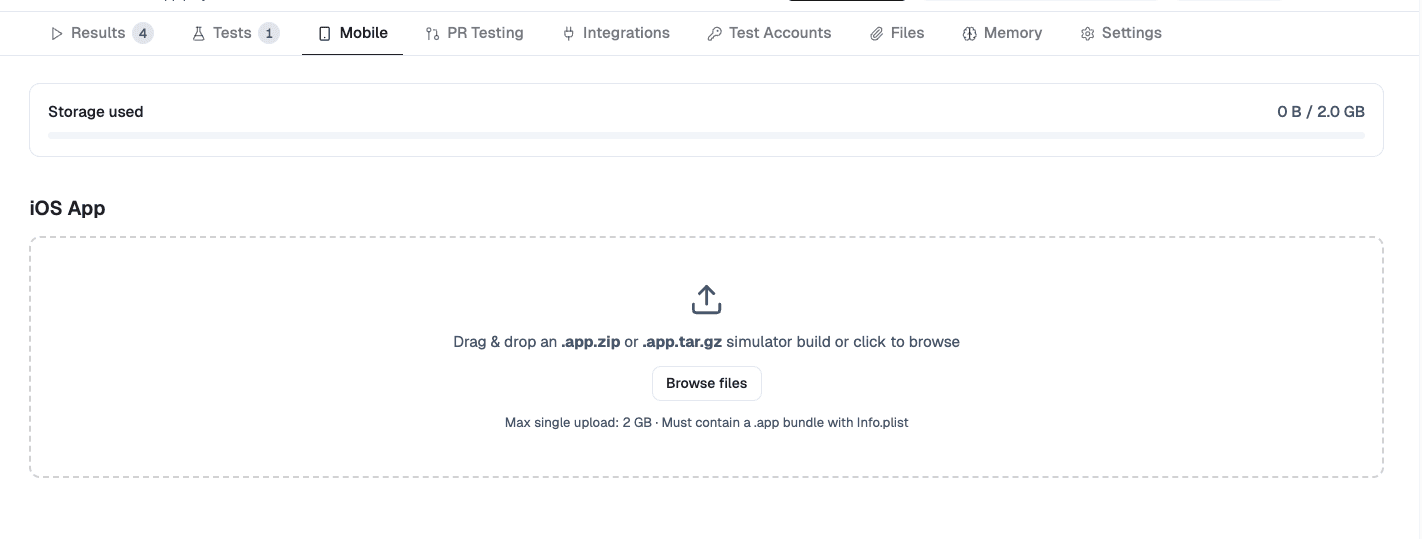
Go to your project and click the Mobile tab. Then click Browse Files and select the .app.zip or .app.tar.gz file you built.

Upload app via dashboard

Create your first mobile test

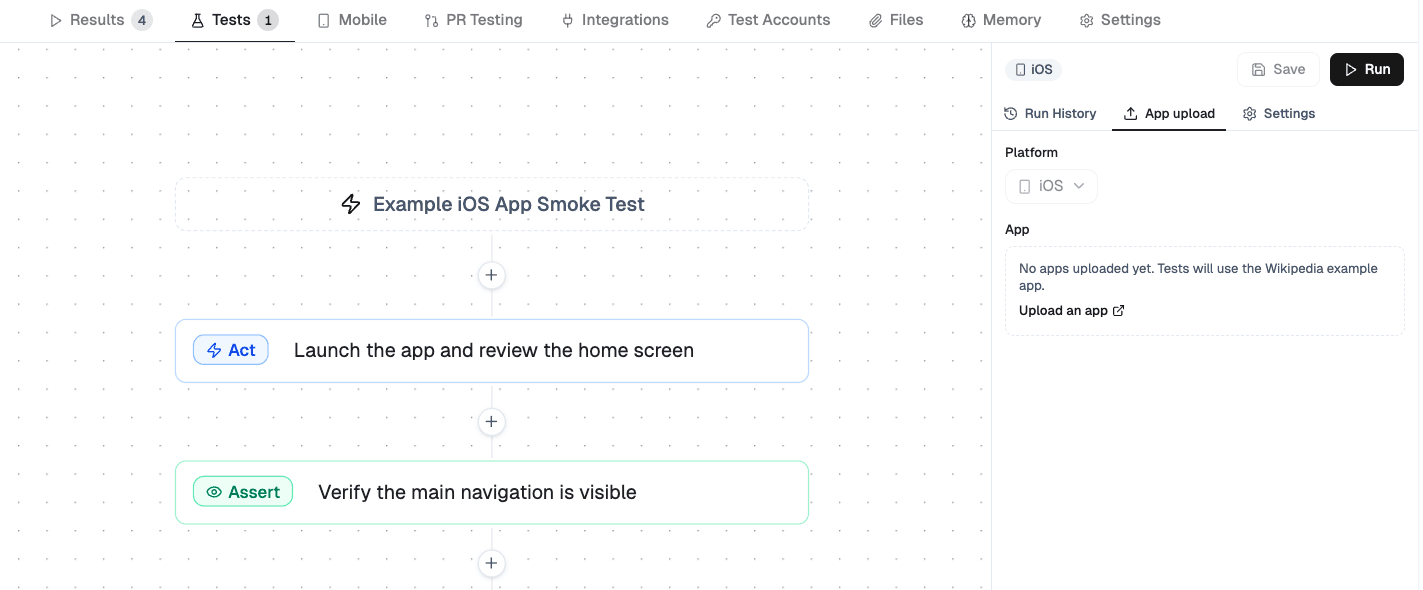
Before adding CI, create at least one mobile test in the dashboard:

  1. Upload your simulator build.
  2. Create a new test or open an existing one.
  3. In the test's App Upload tab, select the uploaded app.
  4. Run the test manually and make sure it passes.

Selecting an app

When writing prompts, guide the agent like you would guide a human user.

Weak prompt example: "Open settings"

Strong prompt example: "Tap the profile icon in the top right, open Settings, and verify the notifications toggle is visible"

Specific prompts produce more reliable tests and make CI failures easier to understand.

If you need to manage uploads programmatically outside GitHub Actions, see the Mobile Apps API reference.

Notes

  • Use removeAfter to auto-delete temporary uploads created during CI.
  • Each project has a 2 GB storage limit.
  • Our GitHub Action can upload the .app directory directly, so you do not need to zip it when running through GitHub Actions.